How to Use Google Wallet in Pakistan
Facing issues adding your bank card to Google Wallet in Pakistan? Solve errors on supported cards, how to set up payments, Turn NFC On.
Now that Google Wallet has officially launched in Pakistan, it's time to learn how to use it! Some users are facing issues while adding their debit or credit cards, so let’s clear things up.
Which Cards Work with Google Wallet? It doesn’t matter which bank you use, Visa and Mastercard work just fine. However, keep in mind that PayPak and UnionPay cards are not supported at the moment.
Why Trust Pakera.pk?
At Pakistan Era, we share information that’s true and clear. Everything is properly checked before we publish, so you can trust what you read. Our goal is to keep things simple and reliable, making sure you get the best and most accurate facts!
Now let's move to the step by step guide on how to add Cards in your new google wallet app and use in Pakistan.
How to Setup Google Wallet in Pakistan
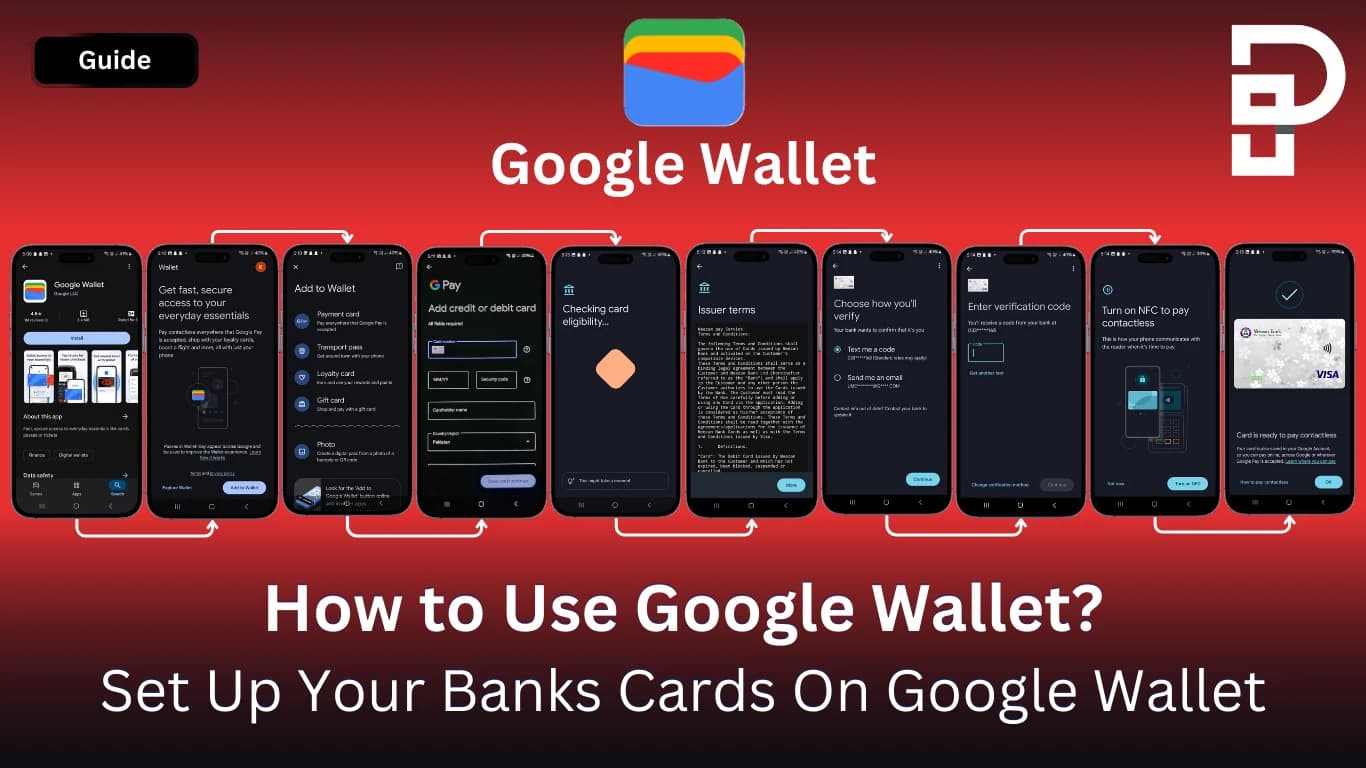
Setting up Google Wallet is simple:
1. Download Google Wallet from Google Play Store
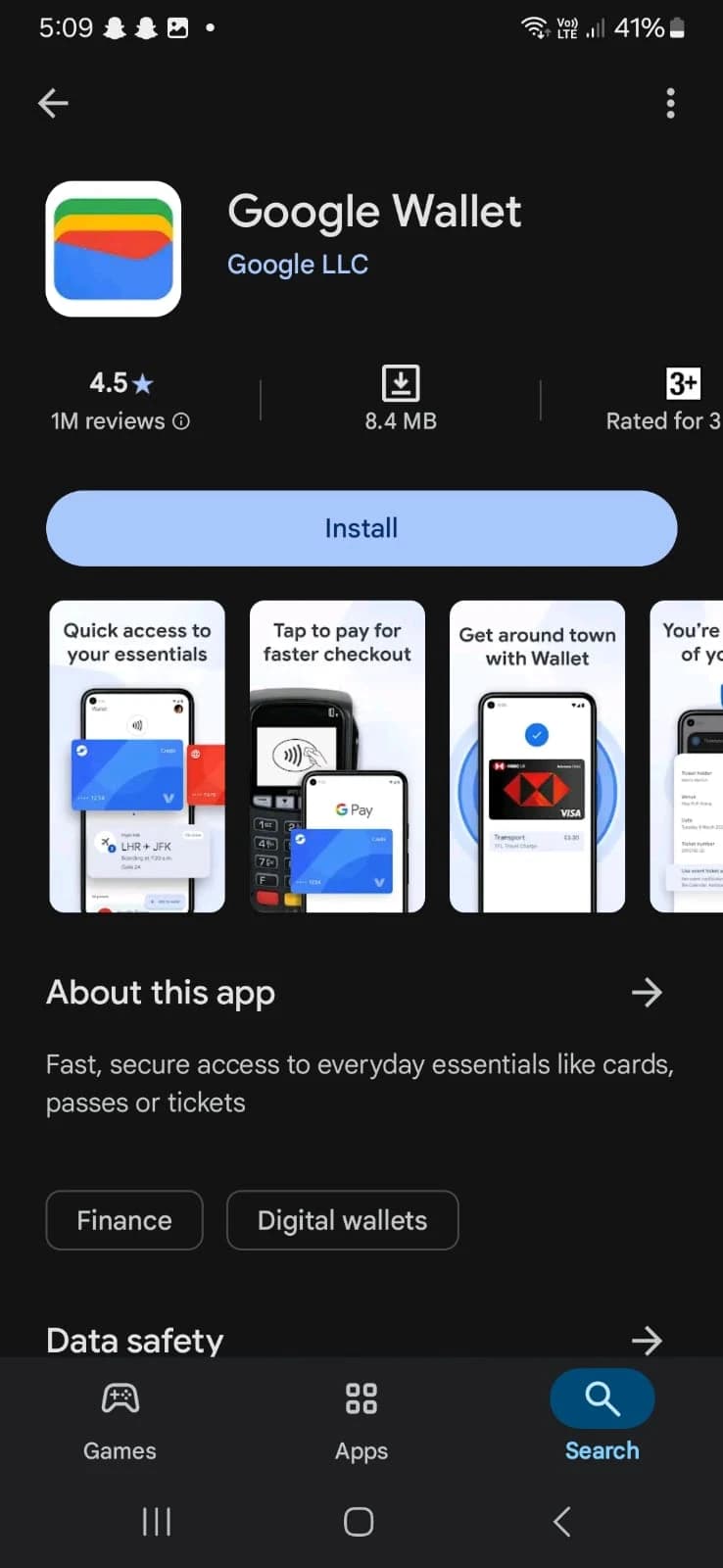
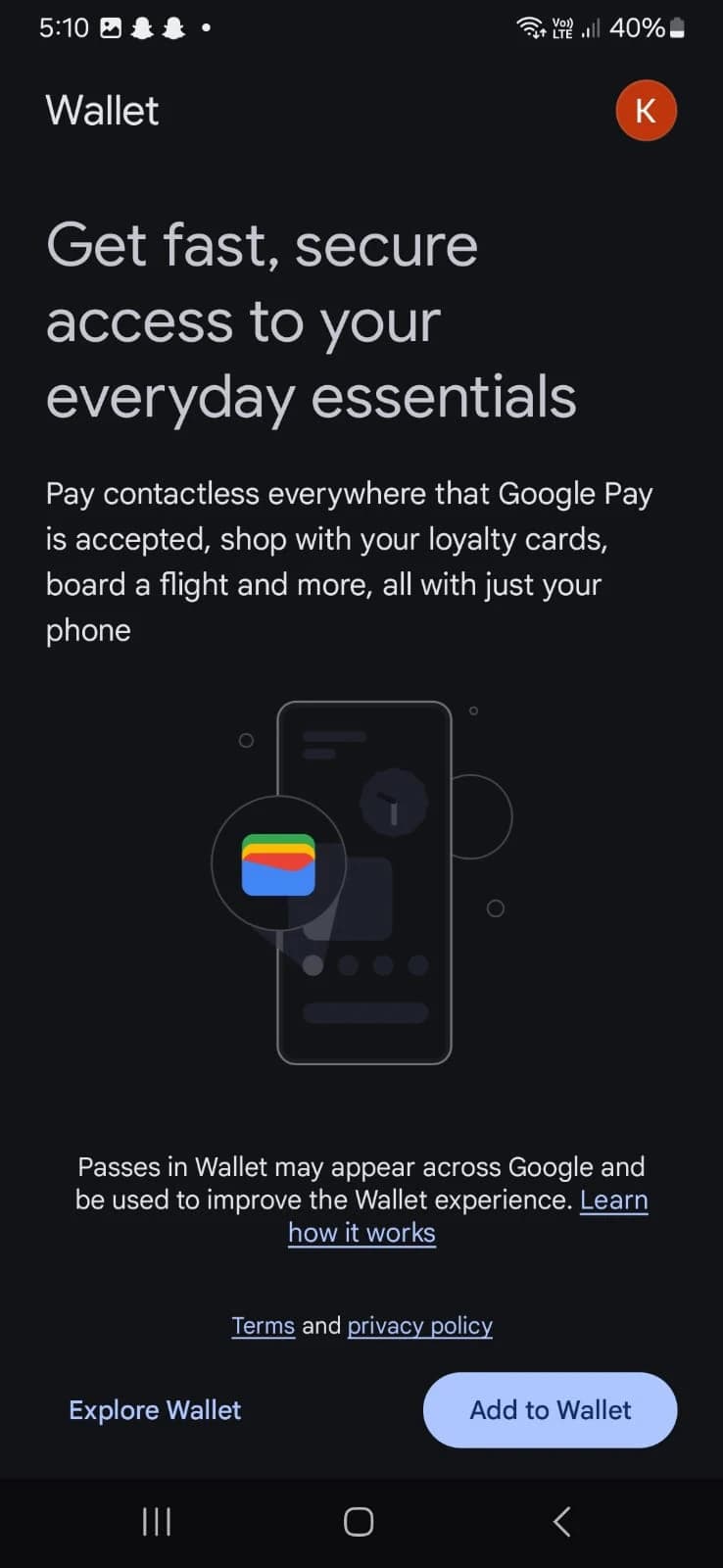
2. Open Google Wallet App and Press Add to Wallet
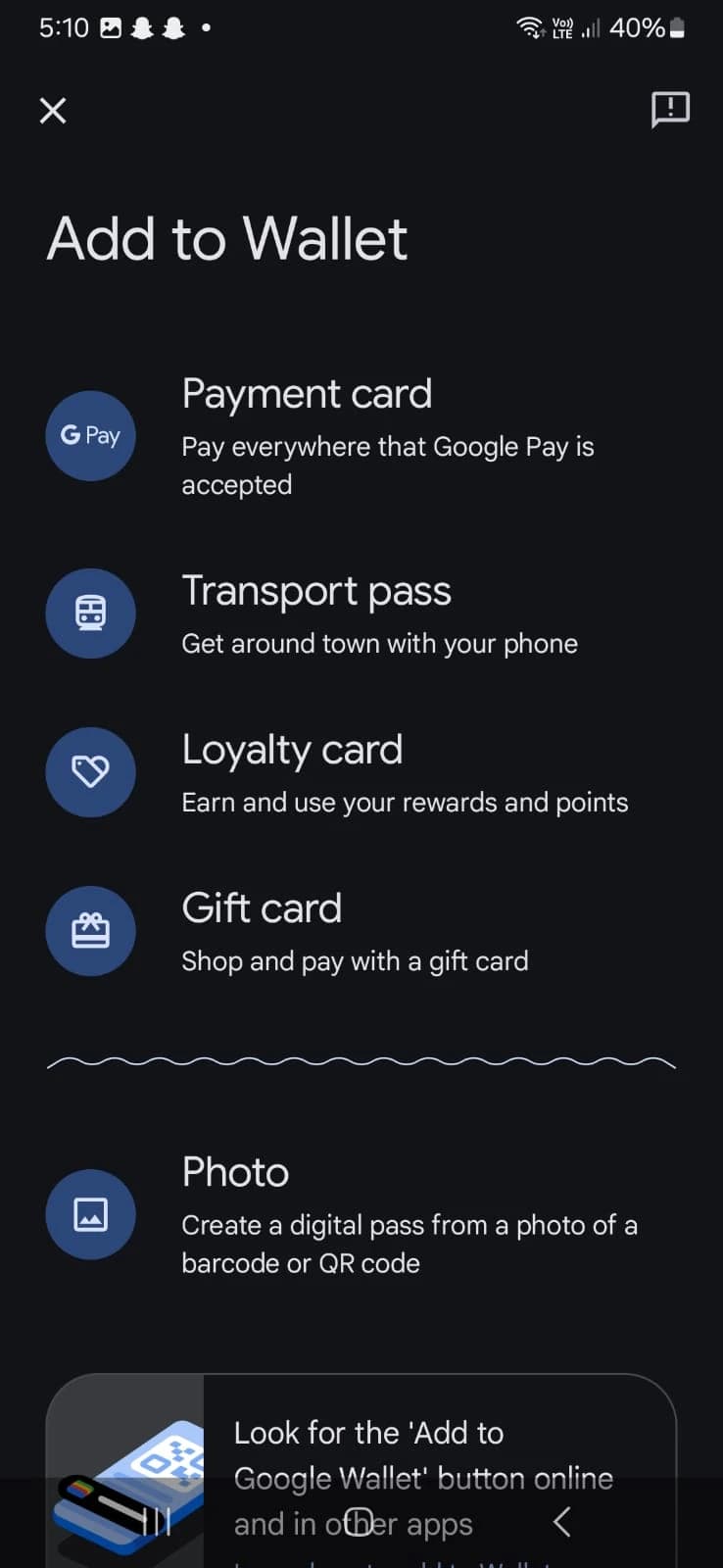
3. Press Payment Card Option in Add to Wallet Menu
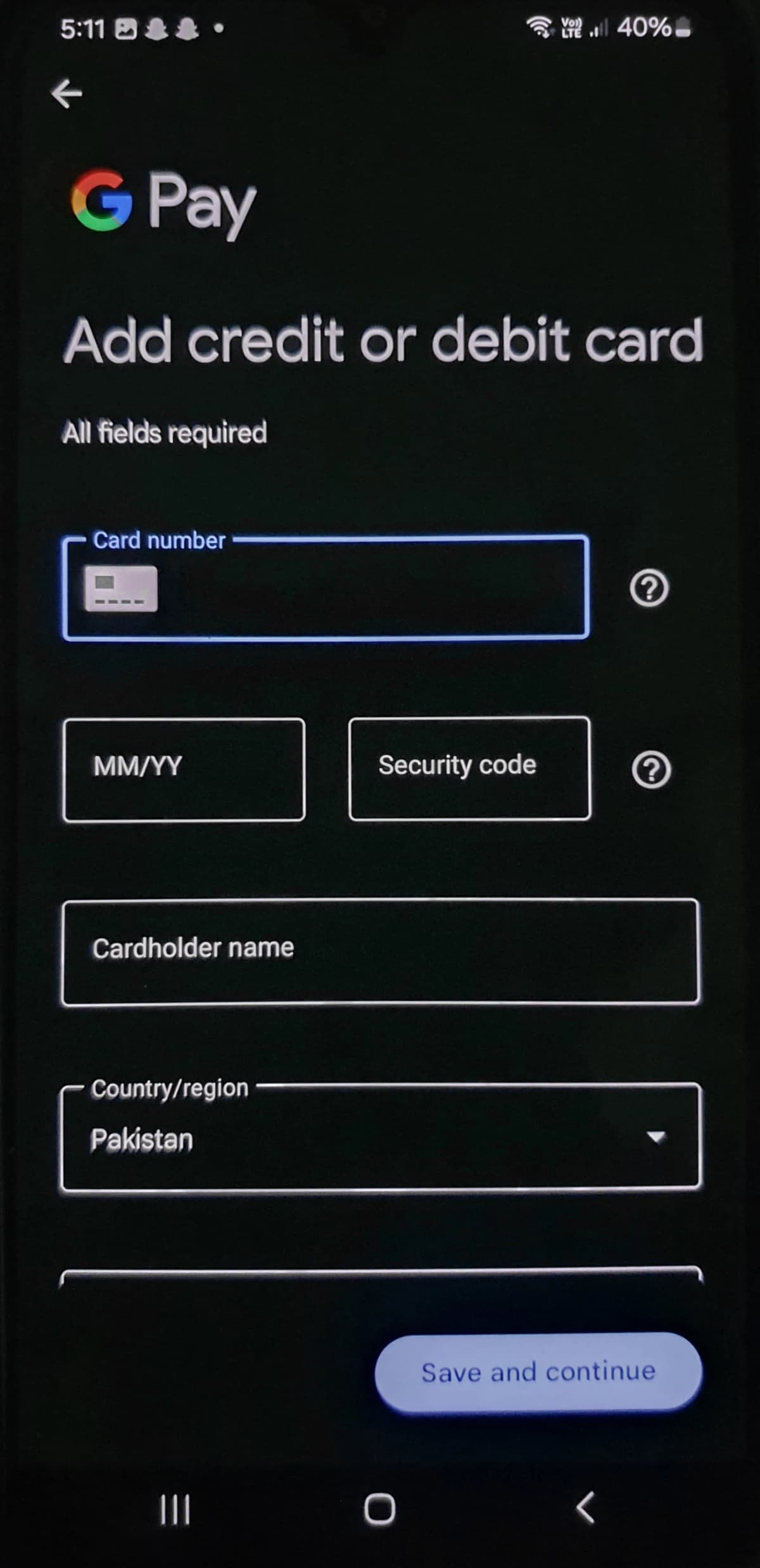
4. Add Your Visa/Master Card Details and press Save and Continue
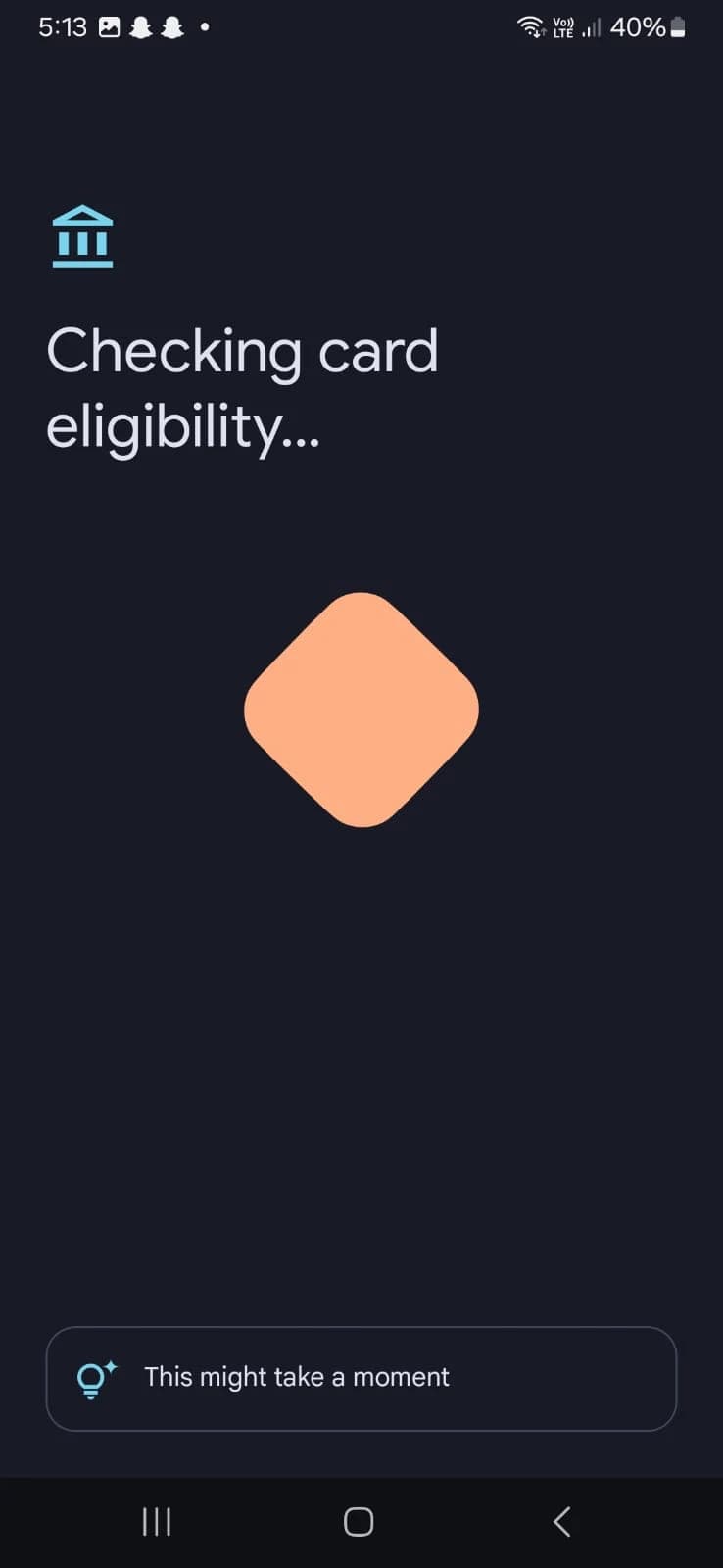
5. Wait for Google Checking Card Eligibility Process to Complete
6. Read and Accept Issuer Terms
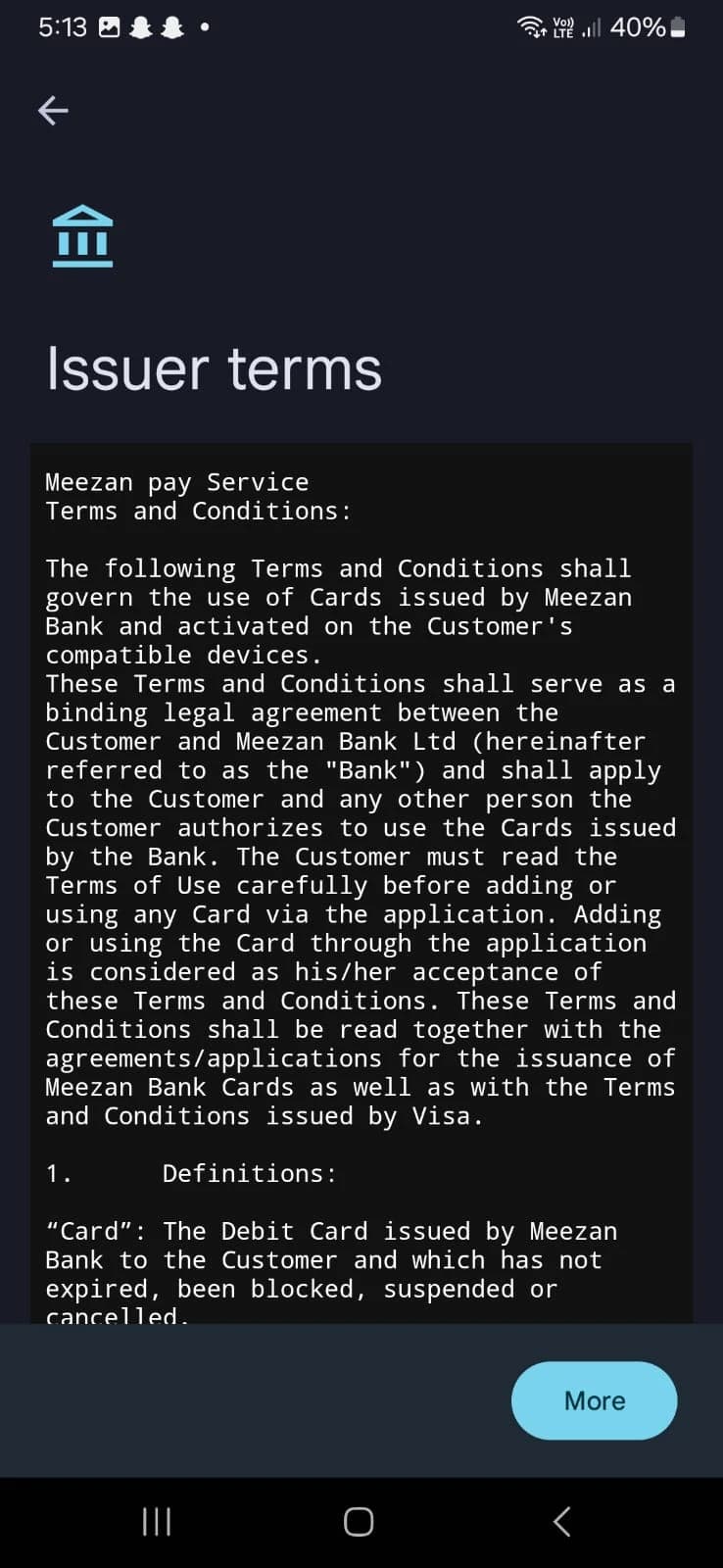
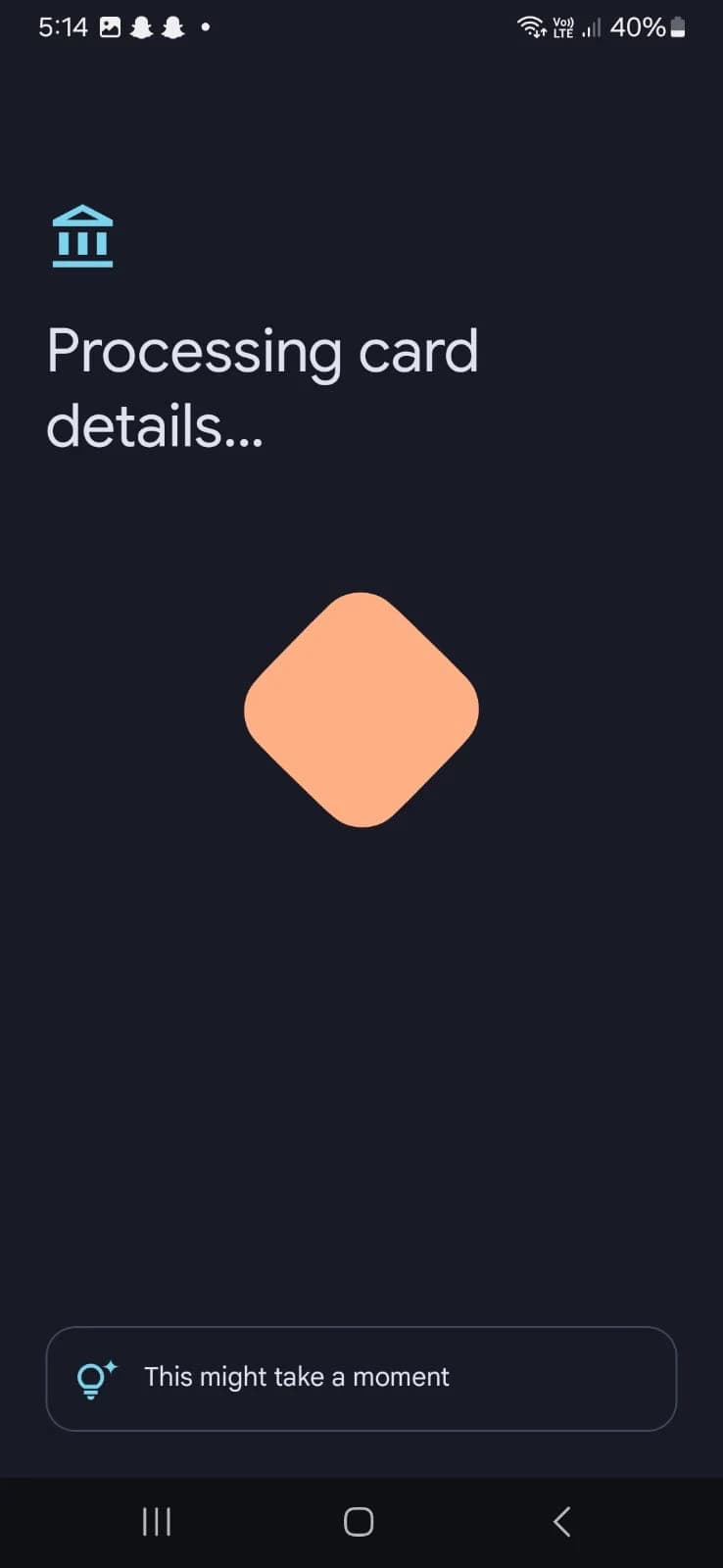
7. Wait for Processing Card Details Process to Complete
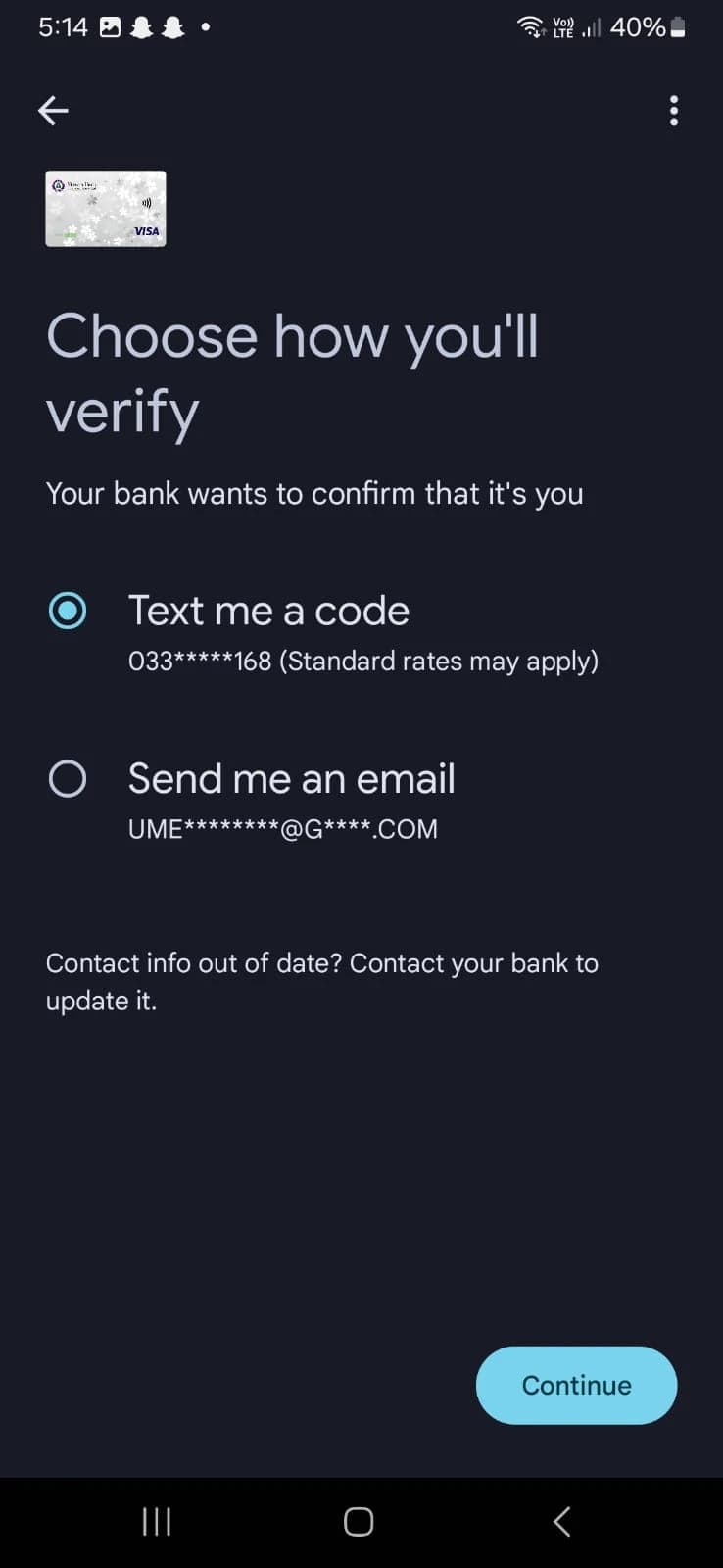
8. Choose How You'll Like to Verify Yourself from Your Bank
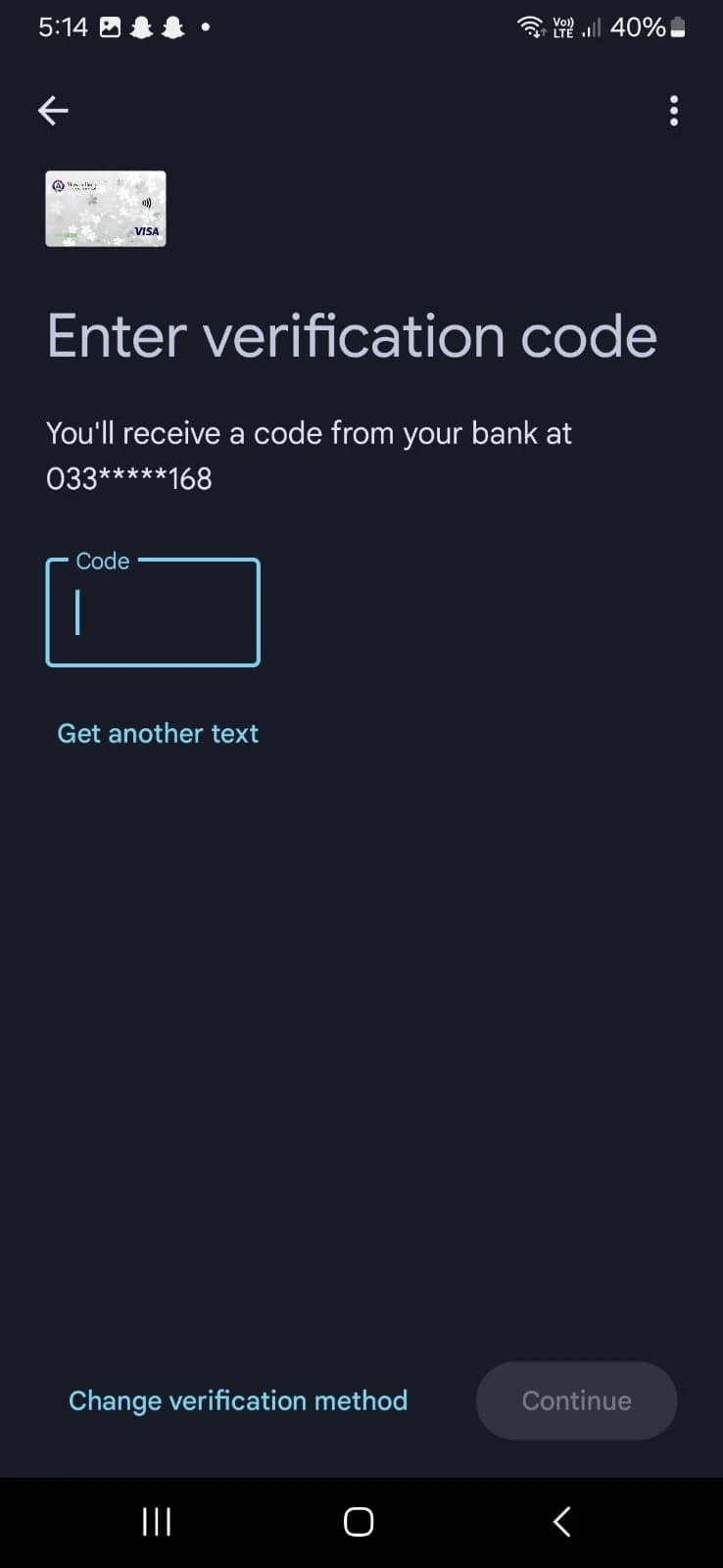
9. Enter Code you Received from Your Bank and Press Continue
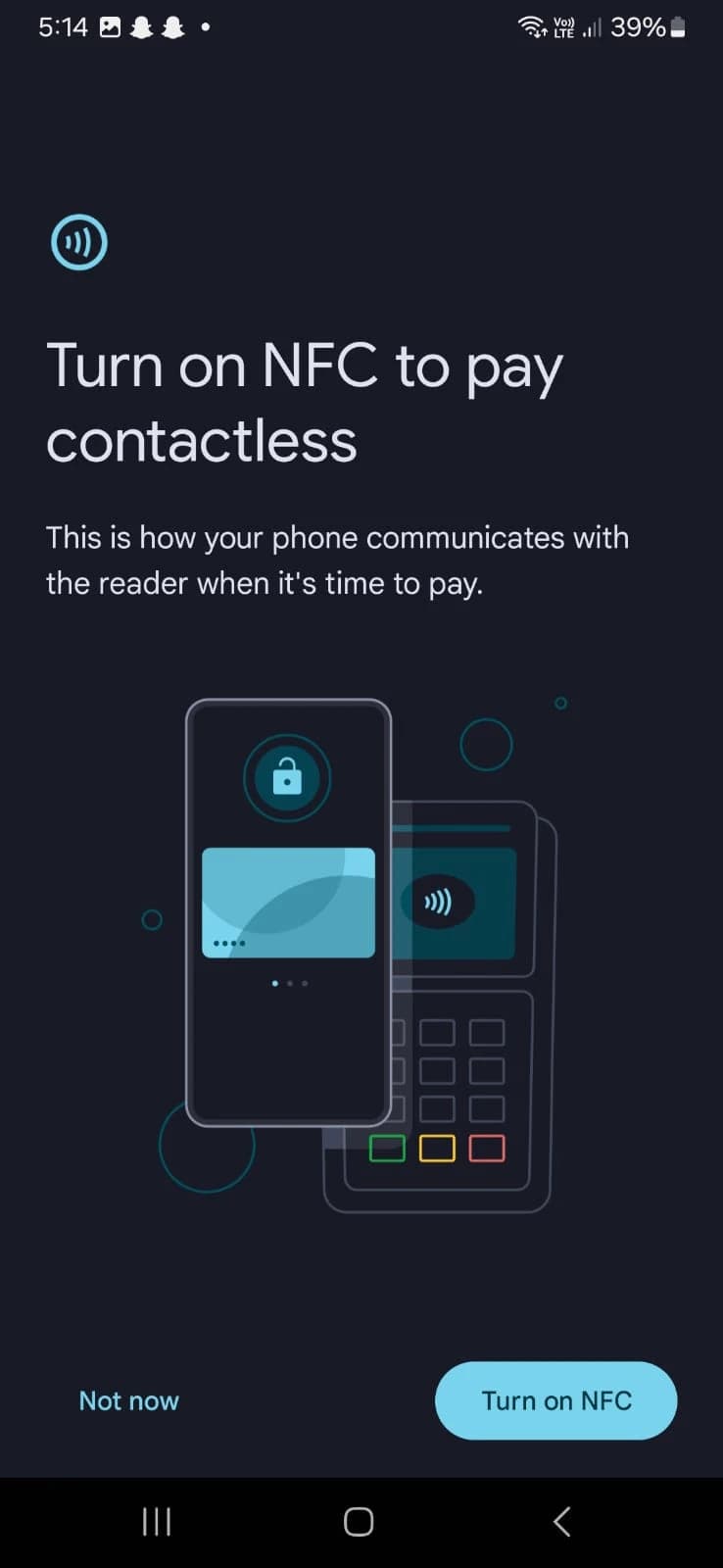
10.Turn On NFC to Pay Contactless
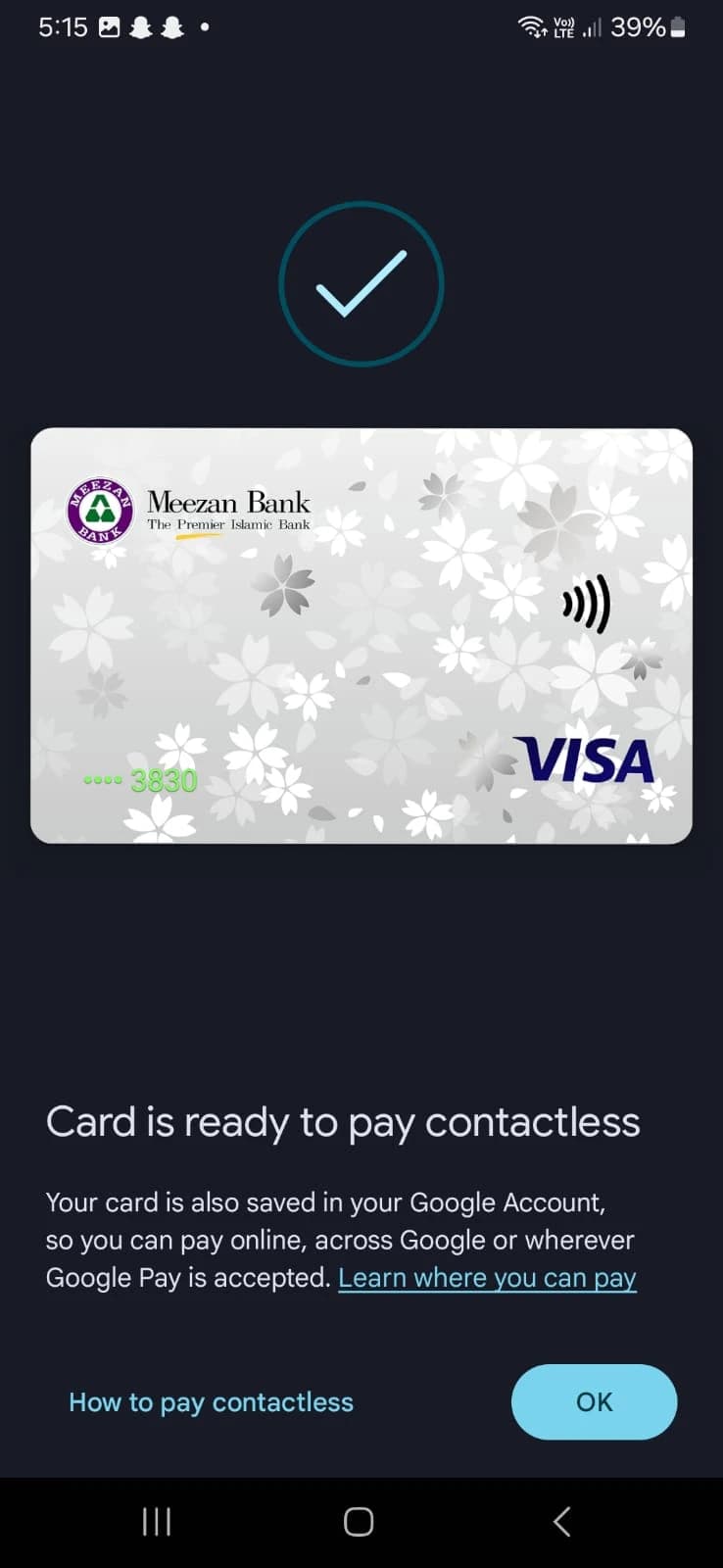
11. Your Card is now ready for contactless payments
For a step-by-step visual guide, check out google wallet step up video on our Official Youtube channel:
How to Use Google wallet To Pay without Card
Now that you’ve added your card, you can pay with your phone at any store with a POS machine.
How to Pay:
1️⃣ Shop as usual and ask for your bill.
2️⃣ When it’s time to pay, unlock your phone and open Google Wallet.
3️⃣ Tap your phone near the POS machine.
4️⃣ That’s it. Paid!
Note: Google wallet only works on NFC Enabled Smartphones.
Want to Pay from Your Smartwatch? Here’s How!
If your smartwatch has NFC, you can set up Google Wallet and pay directly from your wrist.
Smartwatches that support NFC tap-to-pay:
- Samsung Galaxy Watches
- Xiaomi Smartwatches
- Google Pixel Watches
- Apple Watches
How to Add Your Card on a Smartwatch:
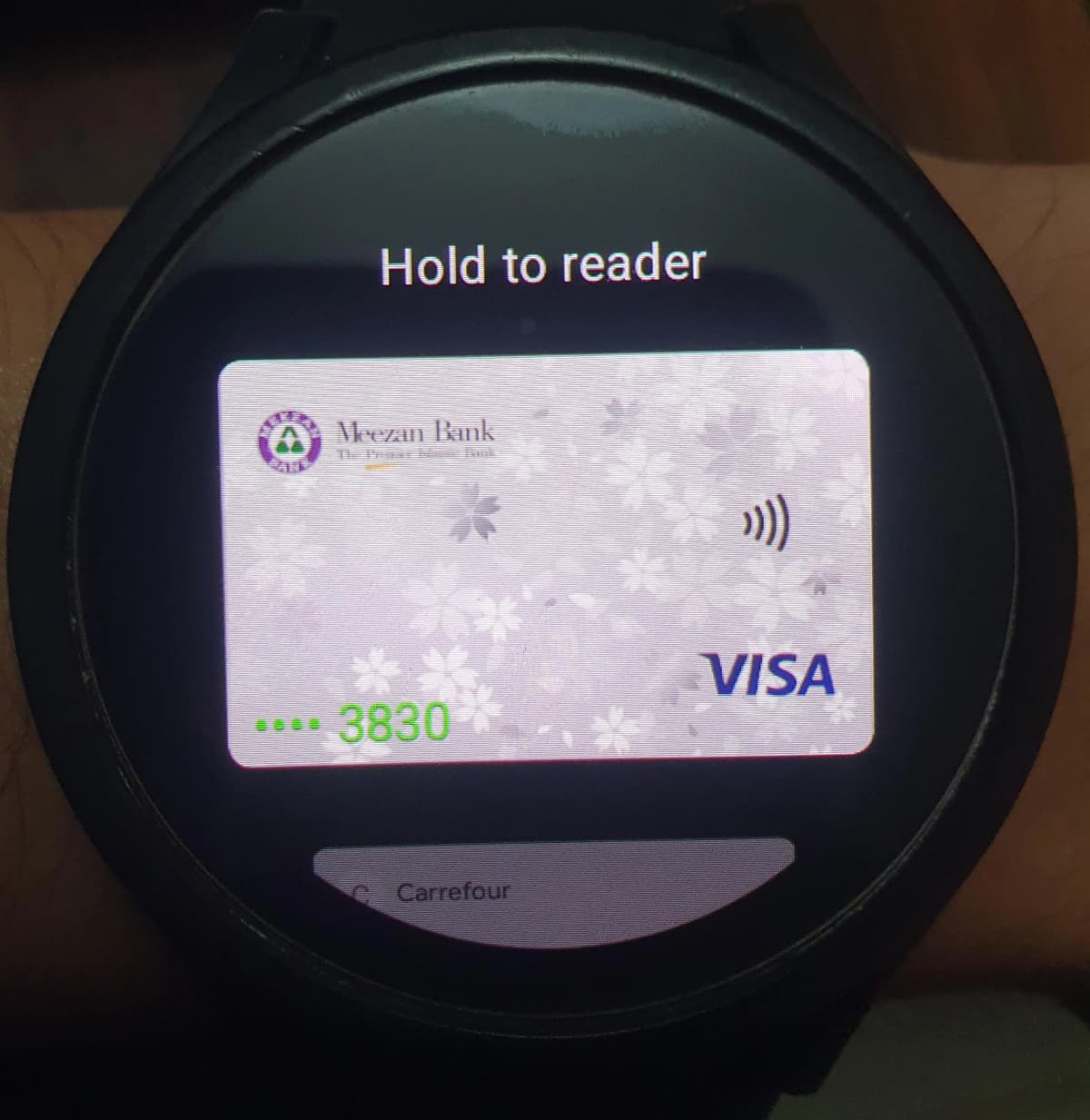
- Open the Play Store on your smartwatch and search for Google Wallet.
- Download and open the app.
- Tap the “+” icon to add a card.
- Follow the instructions on your phone to add your card.
- Done! Now you can pay from your wrist anytime, anywhere.
Which Cards Work?
- ✅ Visa and Mastercard: Work perfectly with no issues.
- ❌ PayPak and UnionPay cards are currently not supported.
What if Your Card Still Isn’t Working? Contact your bank if you face any unusual problems during card verification.
Issues Adding Cards in Google Wallet for Pakistani Users - Quick Solutions
Q1: Why do I get "This card can't be set up" error in Google Wallet?
This usually happens if your card (like SadaPay, NayaPay, Easypaisa, JazzCash) isn't supported yet, try another card.
Q2: My card gets rejected after issuer terms, what now?
Take your time, read and accept the issuer terms properly; this solves the issue.
Q3: Do I need internet to pay using Google Wallet?
No, after setup you can pay offline, but connect periodically for updates.
Q4: Does Google Wallet charge extra fees?
No, Google Wallet itself doesn’t charge fees, but your bank might.
Q5: Can I use PayPak or UnionPay cards with Google Wallet?
Currently, PayPak and UnionPay cards are not supported, only Visa and Mastercard work.
We understand trying something new can sometimes feel a bit tricky. But now that you're fully inform on how to add and use your cards digitally. And don't forget, we’re always here to help you with clear, easy-to-follow tech tips, guides, and updates to simplify your daily life.
About the author

Administrator
Umer Kureshi is the Lead Administrator with a strong background in technology and digital marketing. As the Lead Administrator, and Writer at Pakera.pk, Umer manages the website operations, optimizes website content and writes engaging guides on technology and current events happening in Pakistan.