How to Recover a Forgotten UPaisa MPIN
Forgot your UPaisa MPIN? Reset it using the USSD code or the official helpline with your CNIC. Follow the official recovery process.
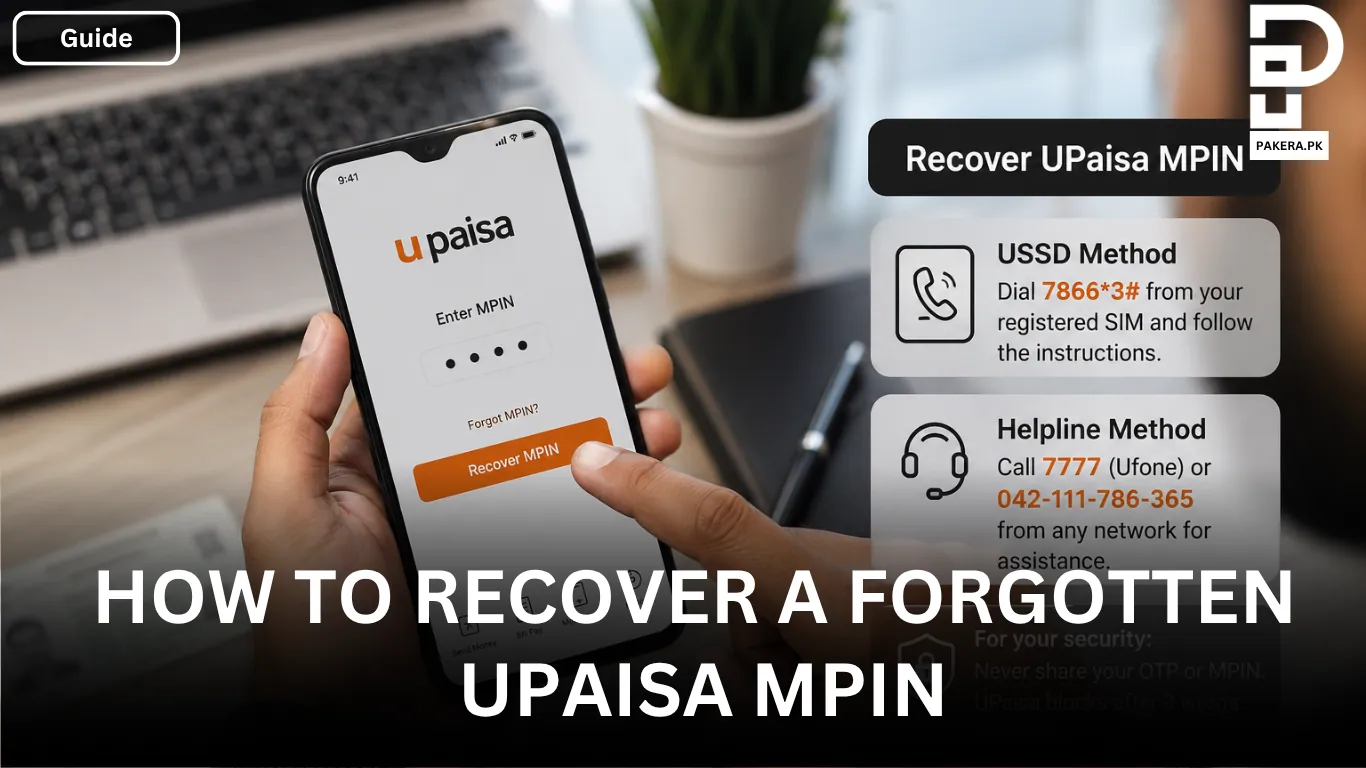
Forgetting your UPaisa MPIN can prevent you from accessing your mobile wallet and completing transactions. Fortunately, recovering your forgotten MPIN is a straightforward process. Whether you prefer using a USSD code or contacting the official UPaisa customer support team, you can securely reset your MPIN and regain access to your account.
In this guide, you'll learn how to recover a forgotten UPaisa MPIN step by step, along with some important security tips to keep your wallet protected.
How to Recover a Forgotten UPaisa MPIN
If you have forgotten your UPaisa MPIN, there are two official ways to recover it. You can either reset it through the USSD service or contact the UPaisa helpline for assistance.
Recover Your UPaisa MPIN Using the USSD Code
The quickest way to recover your forgotten MPIN is through the USSD menu.
Dial 7866*3# from your registered SIM card and follow the on-screen instructions. During the process, you will be asked to provide your CNIC details to verify your identity. Once your information is verified, you can reset your MPIN by following the prompts displayed on your phone.
Recover Your UPaisa MPIN Through Customer Support
If you are unable to reset your MPIN using the USSD code, you can contact the official UPaisa customer support team for assistance.
Call 7777 if you are using a Ufone number, or dial 042-111-786-365 from any other mobile network. A customer support representative will verify your account using your CNIC details and then guide you through the secure MPIN reset process.
Important Security Tips
To keep your UPaisa account secure, remember the following:
- UPaisa blocks your wallet after three consecutive incorrect MPIN attempts to protect your account from unauthorized access.
- Never share your OTP or your new MPIN with anyone, including individuals claiming to be UPaisa representatives.
- Always use the official UPaisa channels when resetting your MPIN.
Frequently Asked Questions
Can I recover my UPaisa MPIN without my registered SIM?
What happens if I enter the wrong MPIN multiple times?
What information is required to reset my UPaisa MPIN?
Is it safe to share my OTP or MPIN with customer support?
Conclusion
Recovering a forgotten UPaisa MPIN is simple when you use the official recovery methods. You can reset your MPIN by dialing 7866*3# from your registered SIM or by contacting the UPaisa customer support team for assistance. Always verify your identity using your CNIC details and follow the recommended security practices to keep your UPaisa wallet safe.
About the author

Author
Shahid joined us in 2024 as an author. He is a senior contributor to Pakistan's leading technology websites. He writes detailed articles, mostly covering his expertise in the latest tech, mobiles, apps, gadgets, and step-by-step guides. His ideology is to help people understand the latest trends and explain complex methods through very easy-to-understand guides.