How to Share Location on WhatsApp
Want to share your current and live location on WhatsApp. Here our Step-by-step guide for Android, iPhone, & Google Maps with privacy & tips.
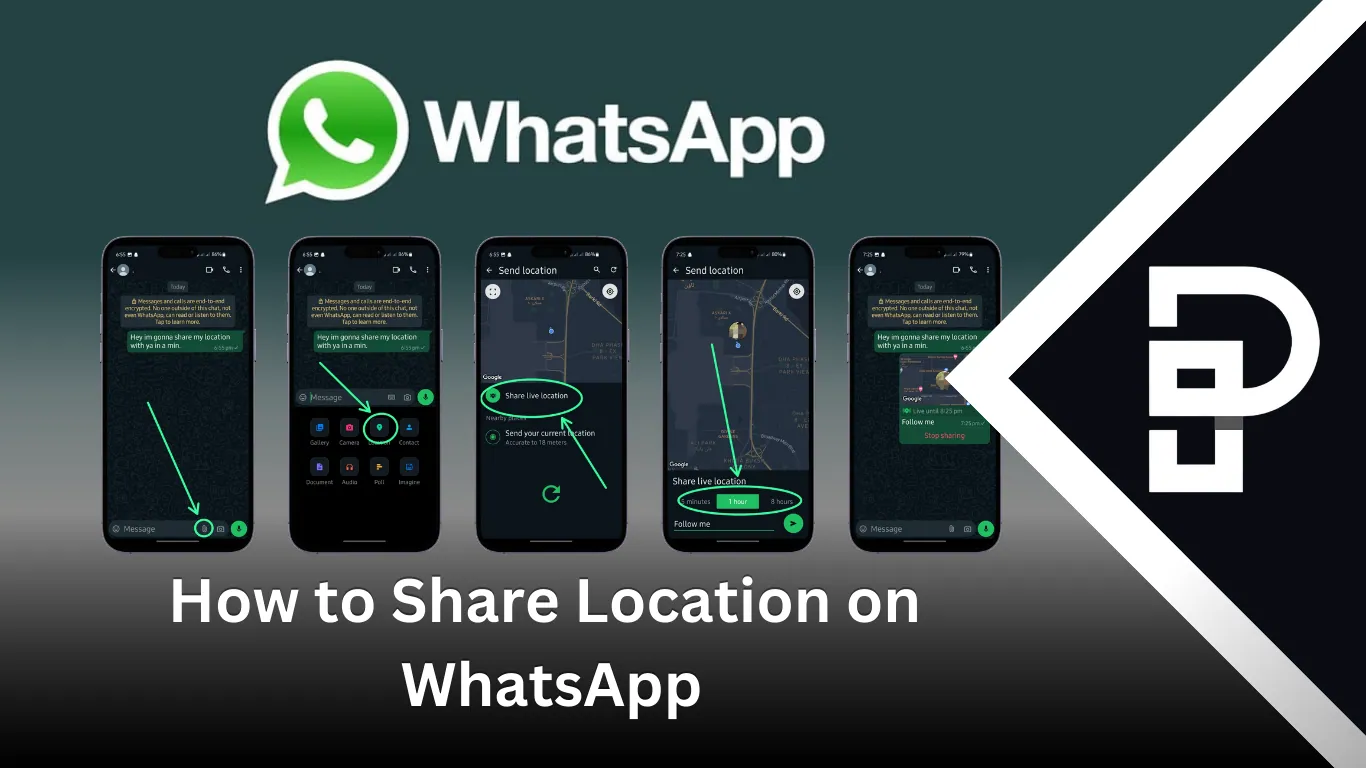
WhatsApp offers a quick and convenient way to share your location with friends and family easily on the go. Whether you need to send your current location or share your live location, WhatsApp location features allows and help you stay connected. Below we have step by step processes with different ways to share your location on WhatsApp, covering both Android and iPhone.
In a Huryy, To Share Your Live Location:
- Open WhatsApp
- Open the chat of the person you want to share your location with
- Tap the clip icon next to the camera icon at the bottom of the screen
- Select "Location"
- Tap "Share Live Location"
- Choose the live location duration (between 15 minutes and 8 hours)
- Tap the send icon at the bottom left corner
- Live location shared!
Want to Stop Sharing Location?
- Open the chat where you shared your location.
- Tap "Stop Sharing."
- Confirm by tapping "Stop" on the pop-up alert.
- Live location sharing ended!
Join Our Whatsapp Channel To Stay Informed
Why Trust Pakera.pk?
At Pakistan Era, we share information that’s true and clear. Everything is properly checked before we publish, so you can trust what you read. Our goal is to keep things simple and reliable, making sure you get the best and most accurate facts to make the best decision!
How to Share Your Current Location on WhatsApp
- Open WhatsApp & go to the chat where you want to share your location.
- Tap the Attach icon (paperclip) on Android or the Plus (+) icon on iPhone.
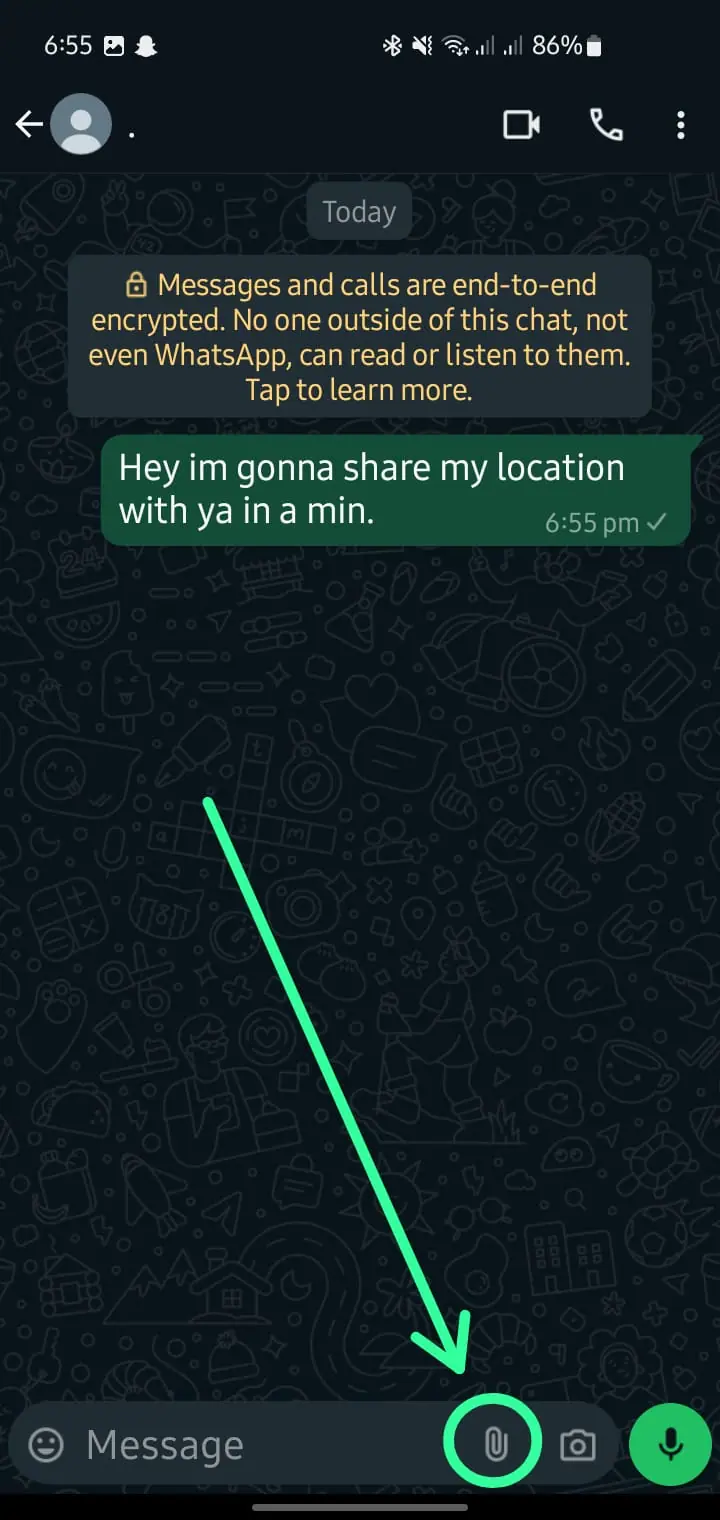
- Select Location from the menu.
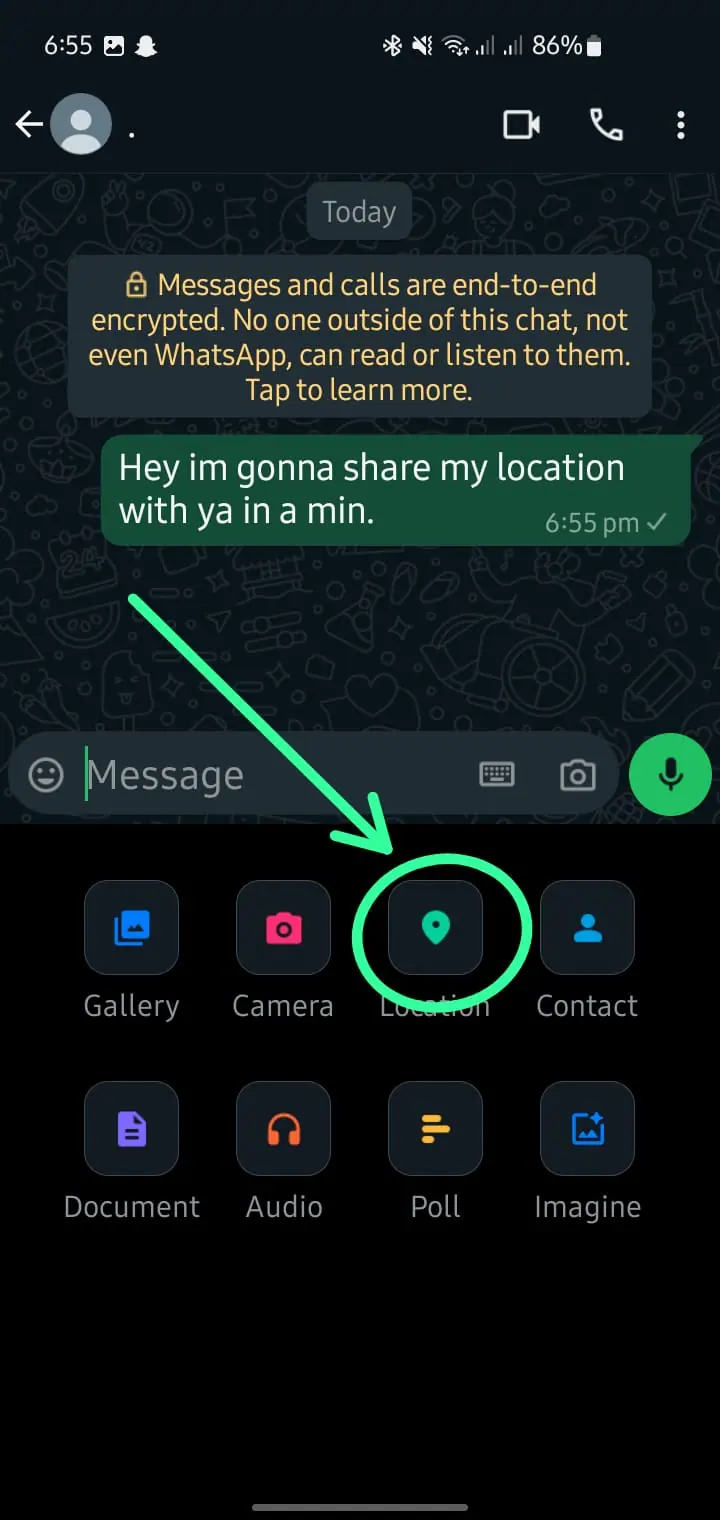
- Choose Current Location.
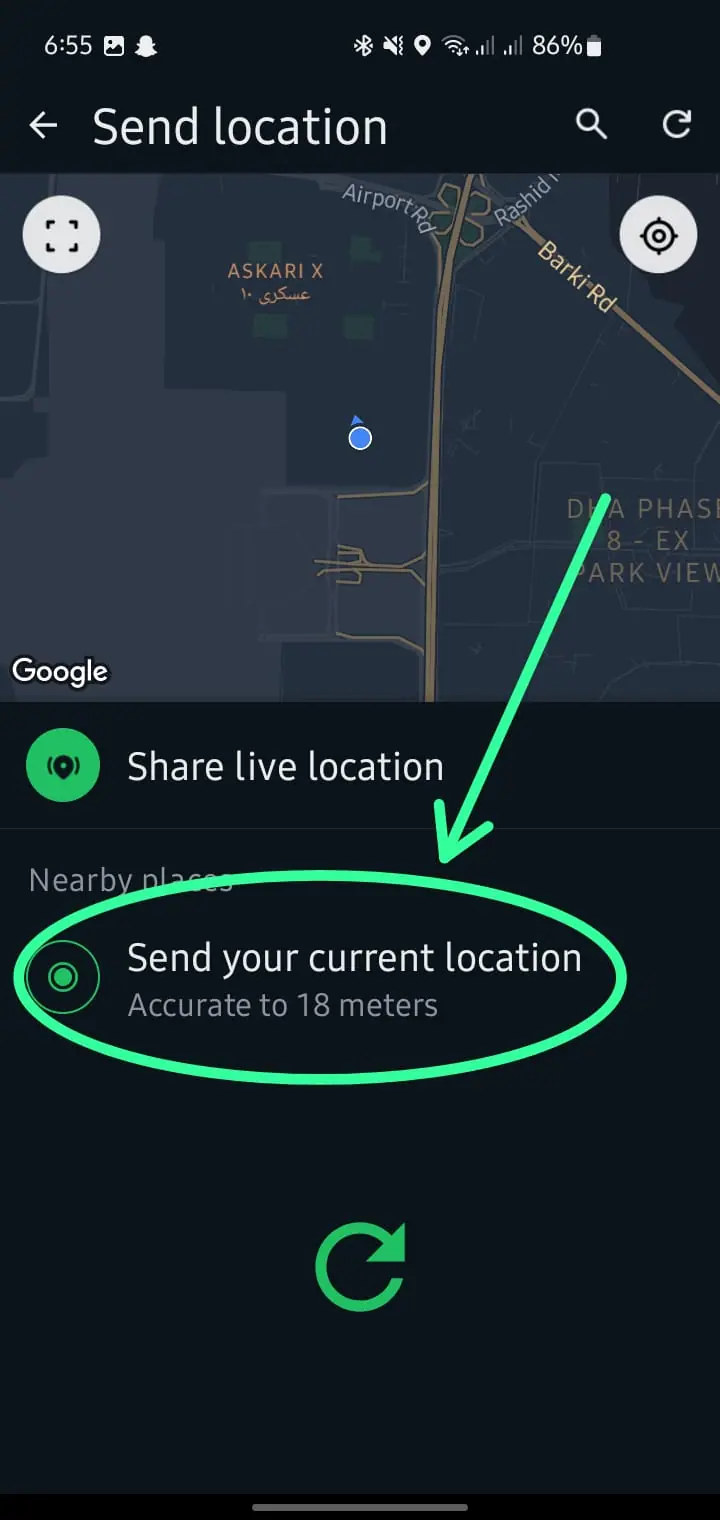
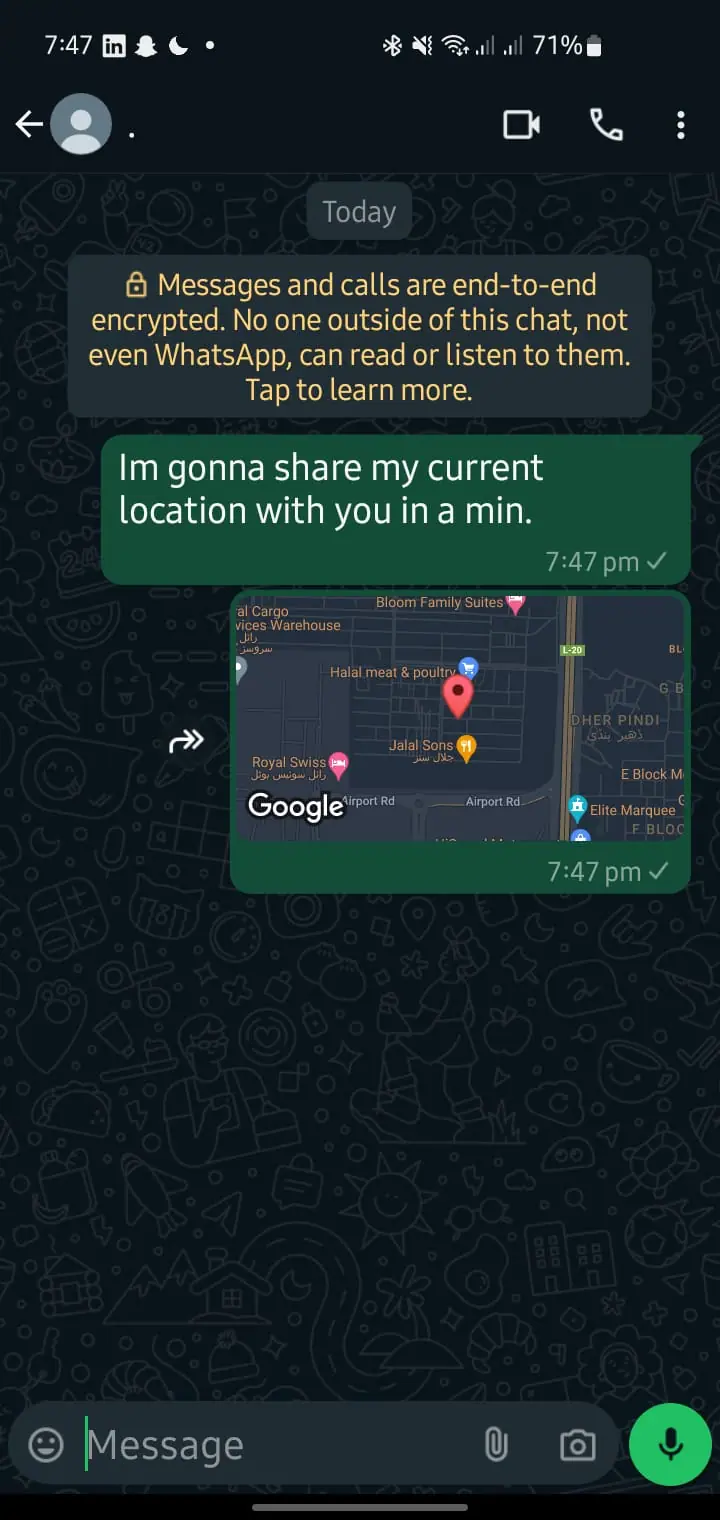
- Send Current Location.
Read How to Un-Ban WhatsApp Account from Meta
How to Share Live Location on WhatsApp
Live location allows you to share your real-time movements with someone for a set period. This feature is helpful when meeting someone or if you want a friend to track your journey.
1. Open the chat where you want to share your live location.
2. Tap the Attach icon (Android) or the Plus (+) icon (iPhone).
3. Select "Location" from the menu.
4. Tap "Share Live Location."
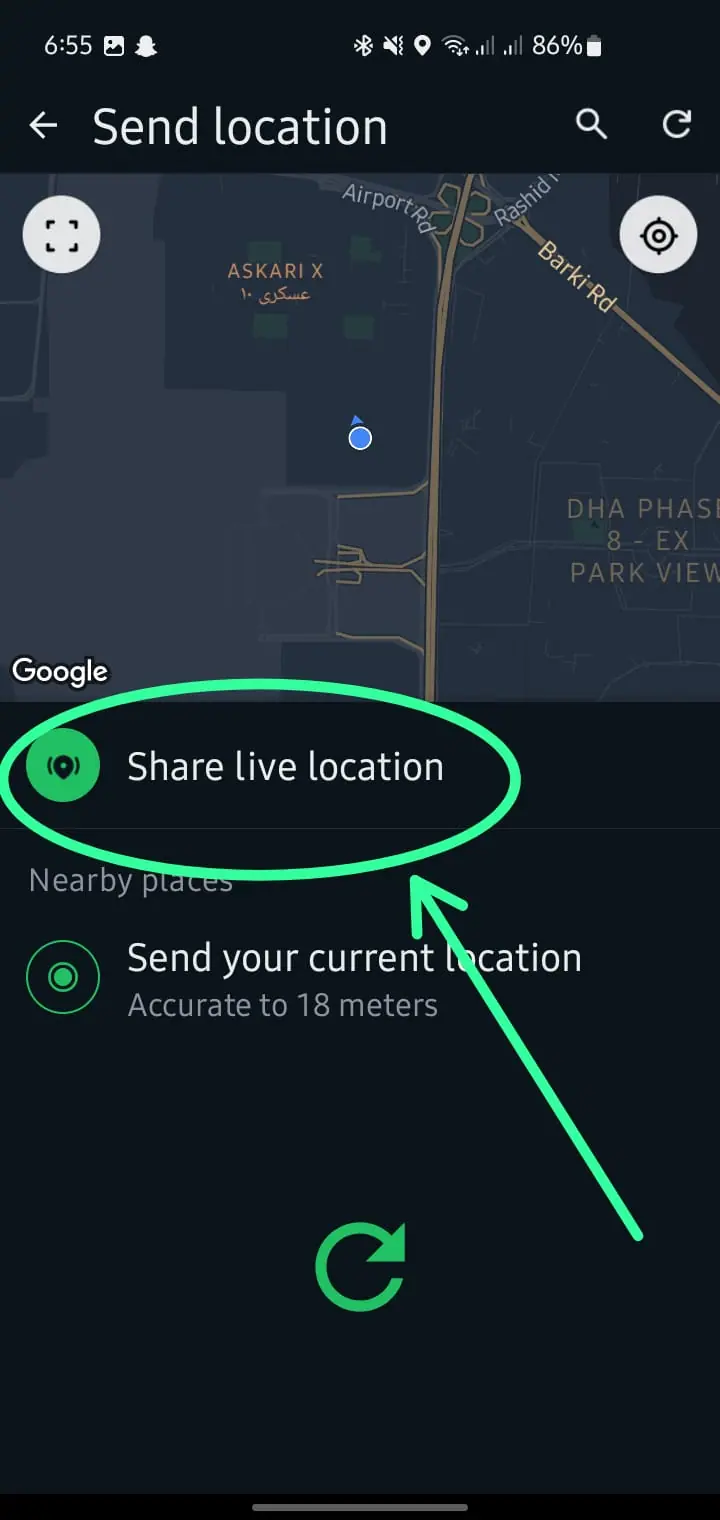
5. Choose how long you want to share your live location (15 minutes, 1 hour, or 8 hours).
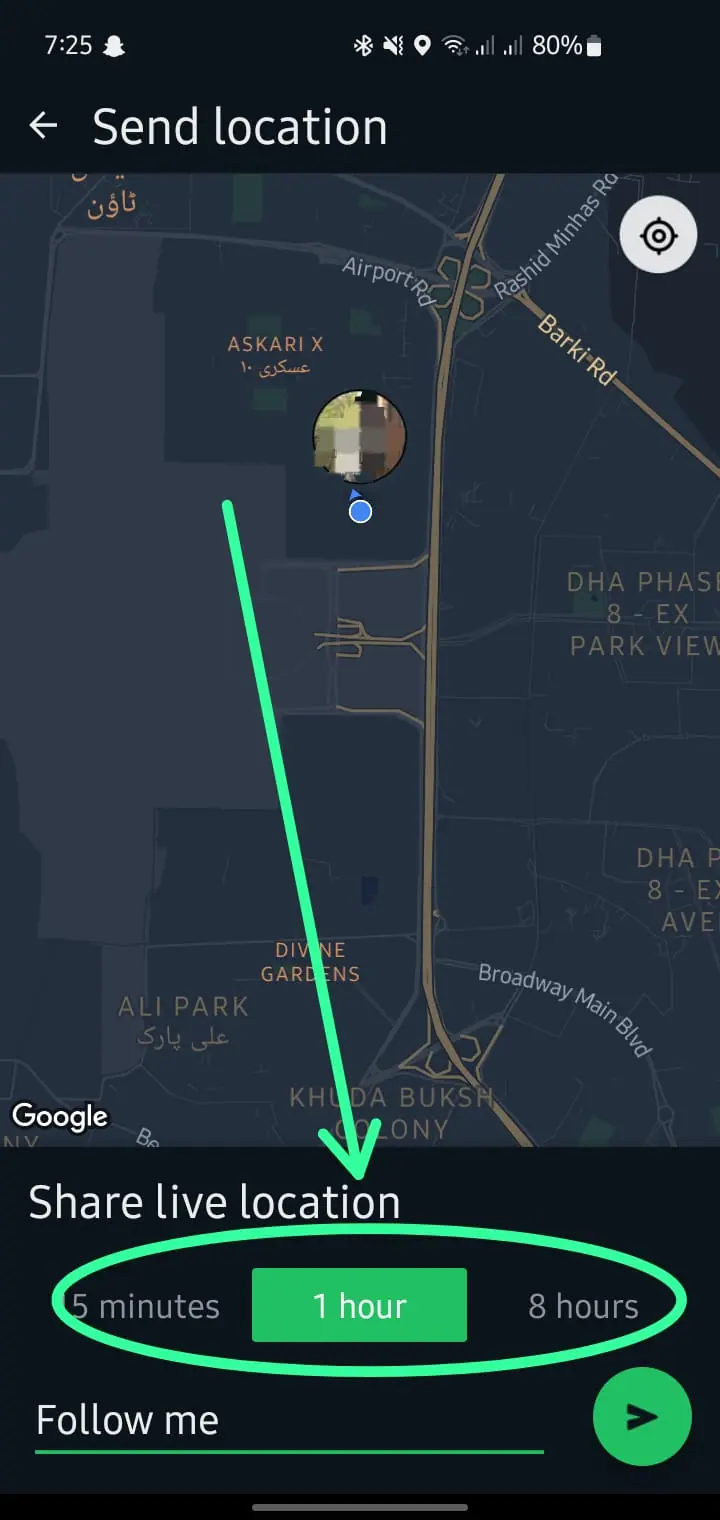
5. Tap Send.
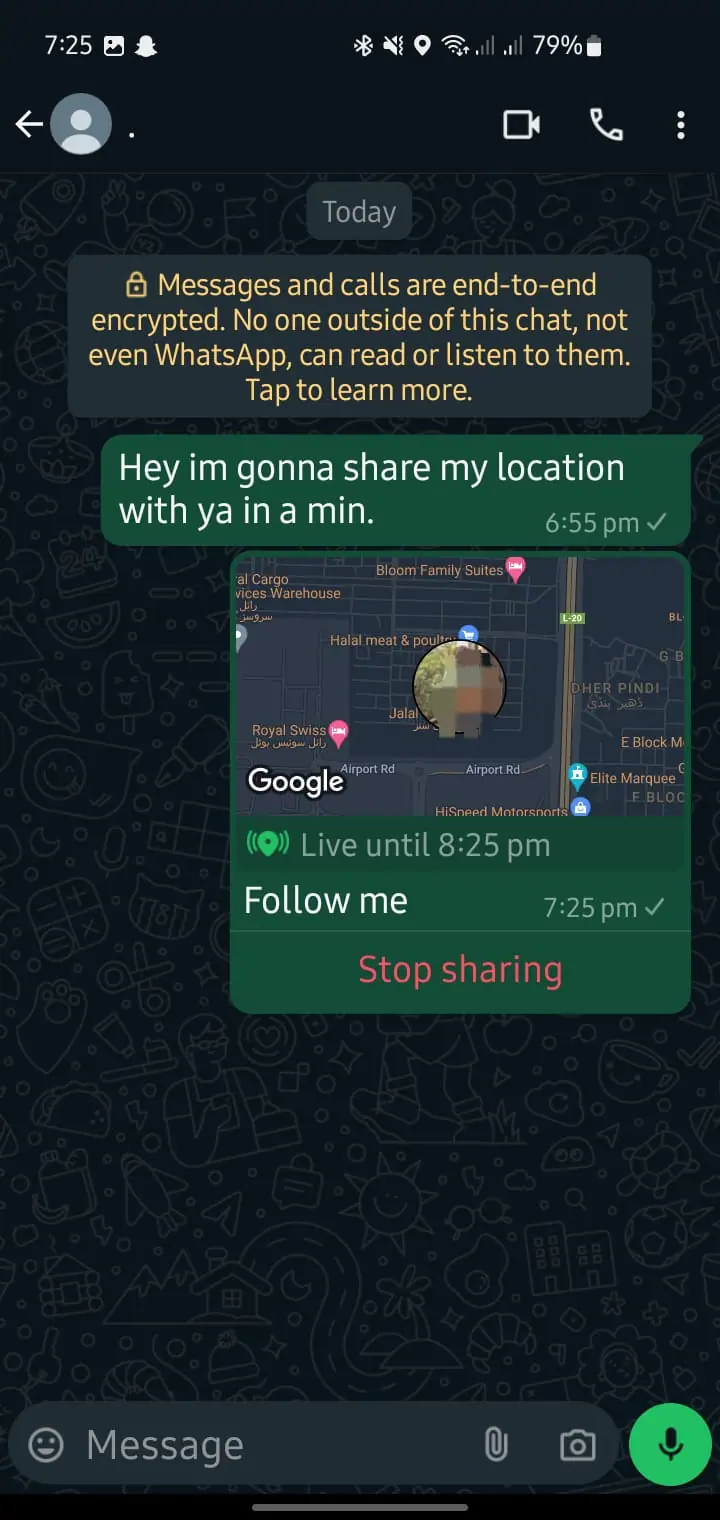
Your live location will update in real-time until the time limit expires or you manually stop it.
How to Share Location on WhatsApp from Google Maps
You can also share your location on WhatsApp directly from Google Maps, which is ideal for precise location sharing.
- Open Google Maps on your phone.
- Tap the blue dot (your location) or search for a specific place.
- Select Share and choose WhatsApp from the list of apps.
- Pick the contact or group you want to share it with and tap Send.
This will send a Google Maps link with your pinned location.
How to Share Location from WhatsApp Web
WhatsApp Web do not support let us directly send location like the mobile app does. But still we can send location by sending a pinned location through Google Maps:
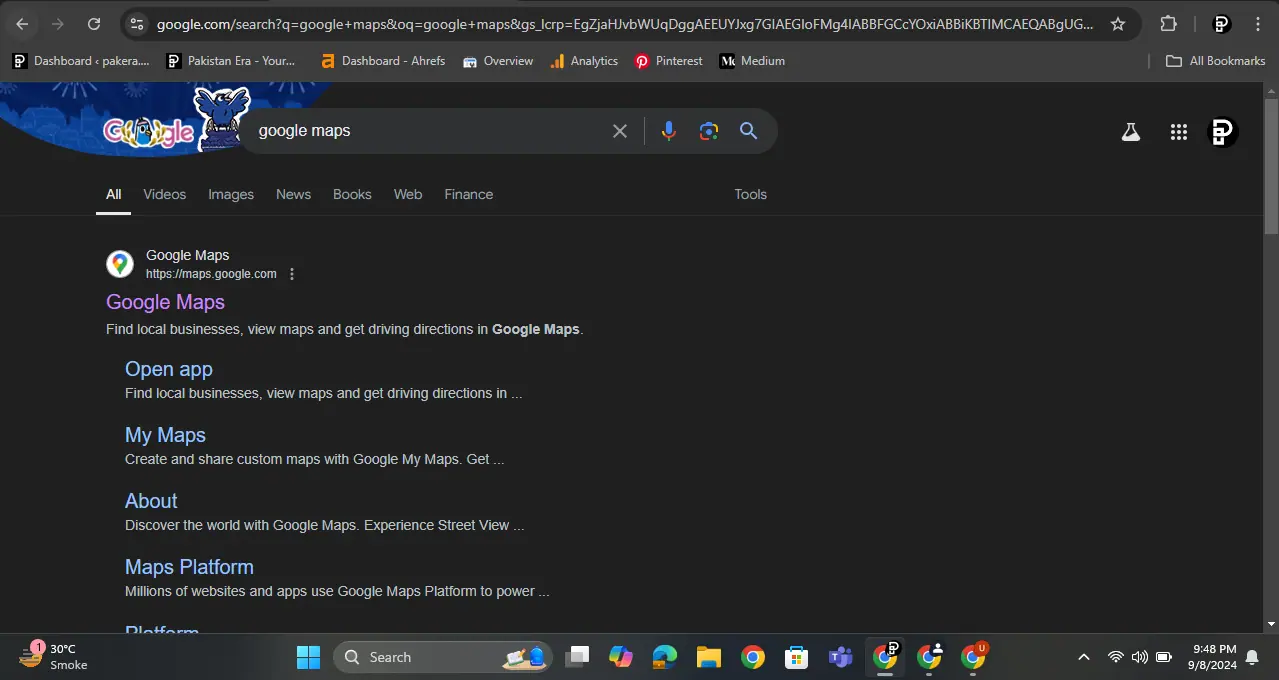
1. Open Google Maps
2. Pin the Location
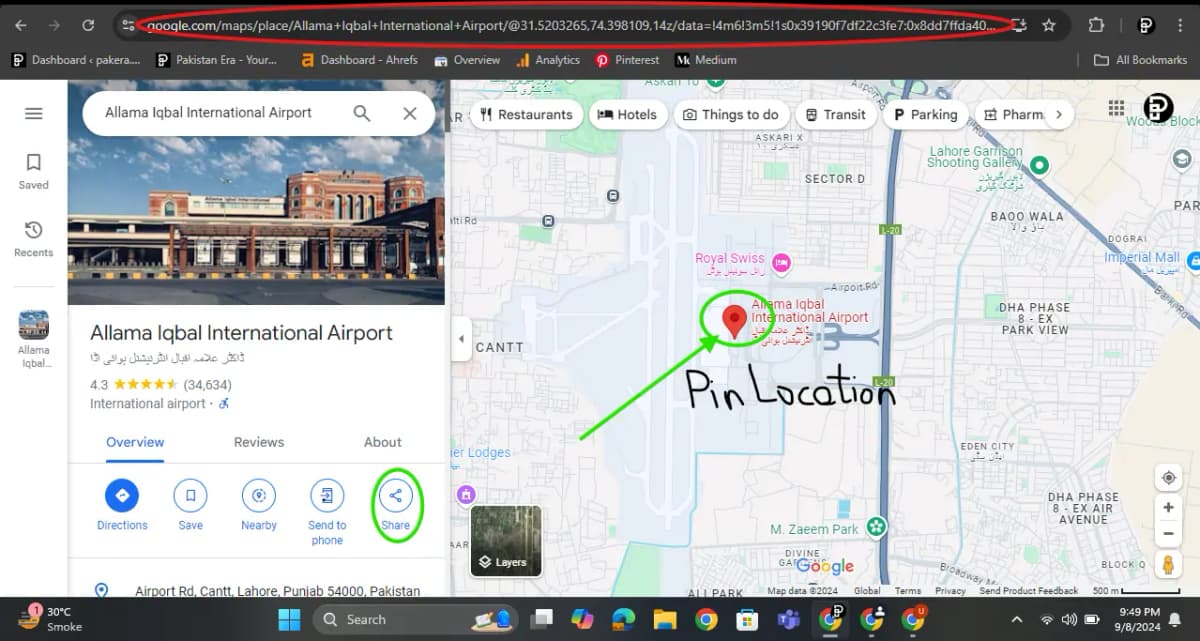
3. Copy the Location Link
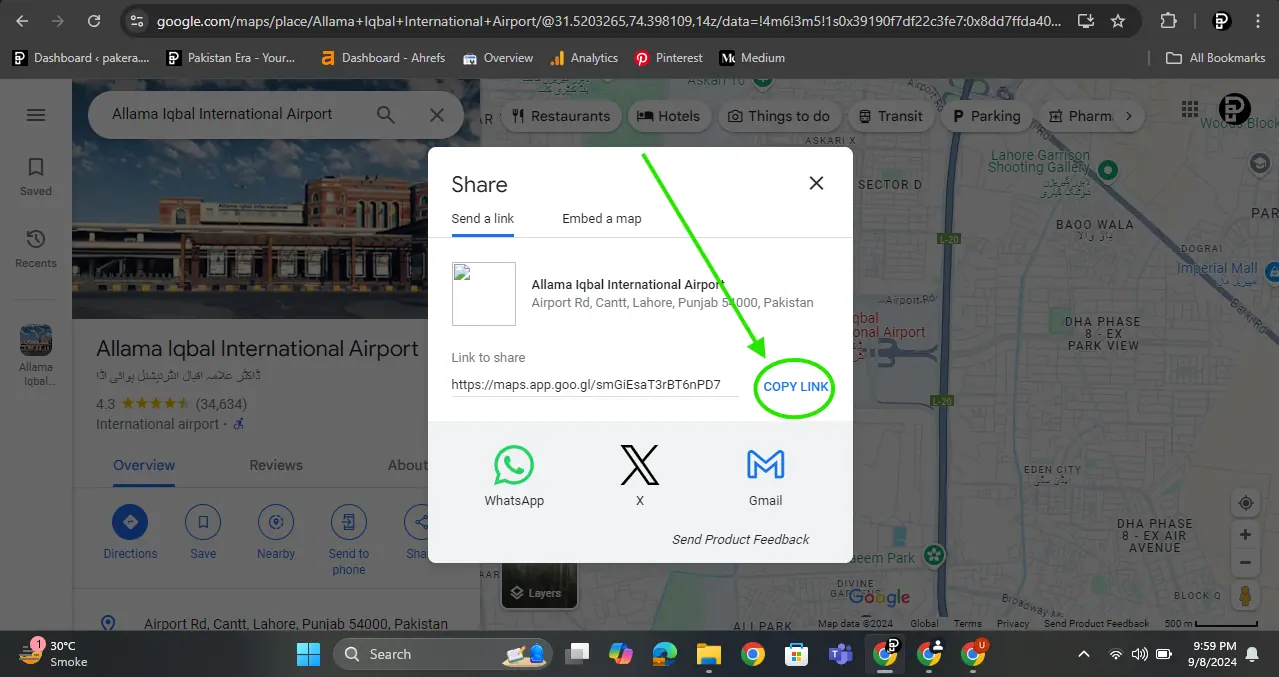
4. Share on WhatsApp Web
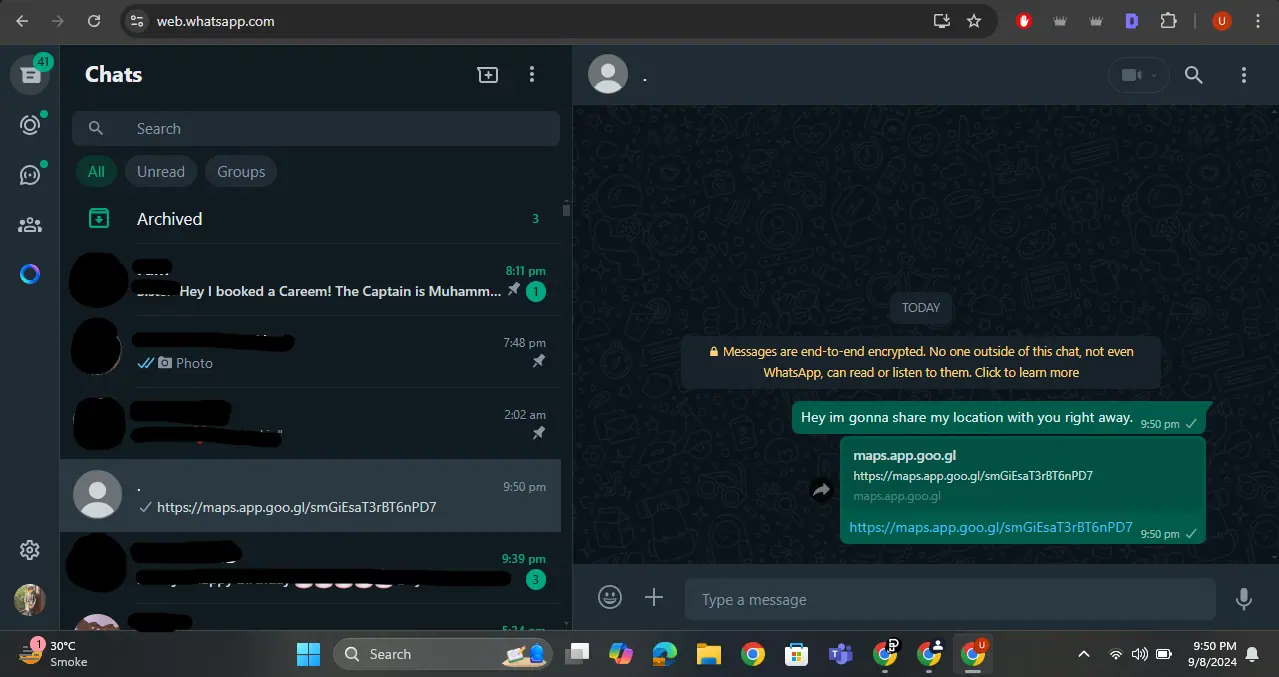
This method does not offer real time location sharing, but still it let you send a static (current) location via WhatsApp Web.
How to Share Location from WhatsApp Desktop
Similar to WhatsApp Web, the desktop version of WhatsApp does also don't have a built-in feature to share current or live location. To share a location:
1. Open Google Maps on Your Desktop Browser
2. Pin the Location
3. Share Location on WhatsApp Desktop
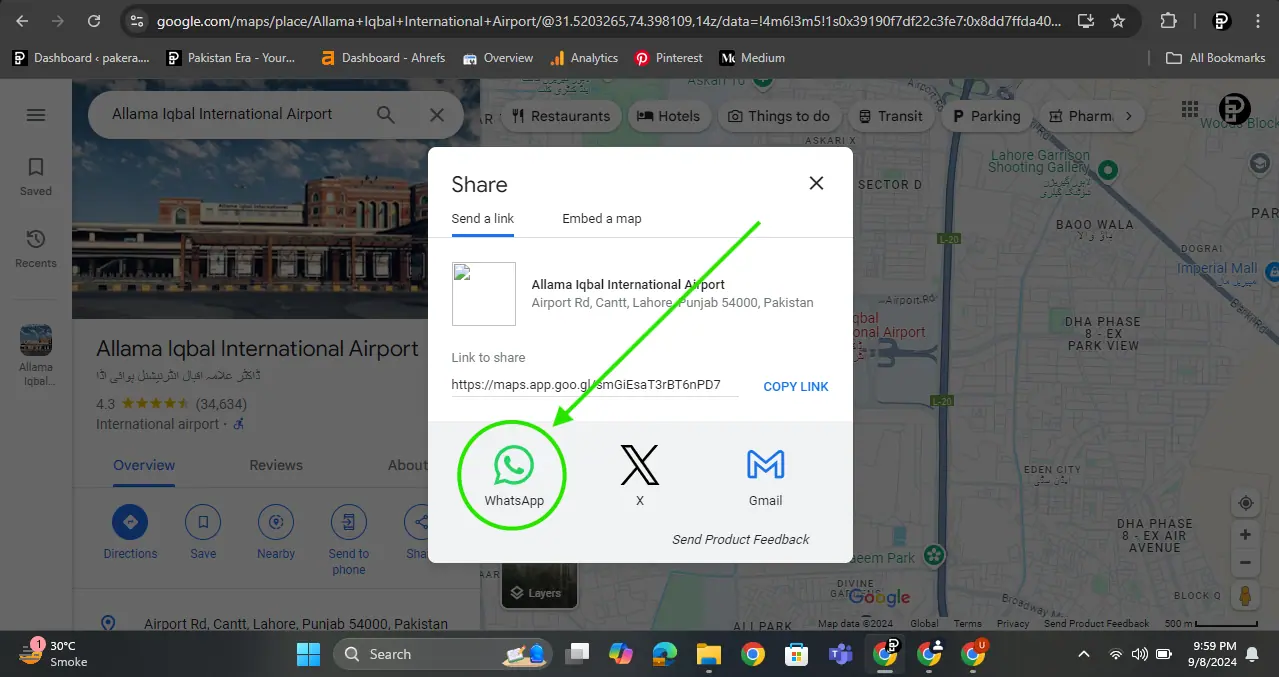
4. Location Link in Chat
WhatsApp Location Sharing on Android - Tips and Tricks
If you are an Android user like us, here is how to ensure smooth location sharing personally tried by us:
- Enable Location Services: Go to Settings > Location and turn on location services for WhatsApp.
- Improve Accuracy: Use high-accuracy mode by going to Settings > Location > Mode, then select High accuracy.
- Check Permissions: Ensure WhatsApp has permission to access your location by going to Settings > Apps > WhatsApp > Permissions and enabling location access.
Following these steps will make location sharing more accurate and reliable.
Read how to track a scammer on WhatsApp
What to Do If Location Sharing Isn’t Working
If WhatsApp isn’t able to access your location, here’s how to troubleshoot:
- Check Location Services
- Update the App
- Check Permissions
If the issue persists, restart your phone and try again.
Benefits of Sharing Location via WhatsApp
There are several reasons why sharing your location via WhatsApp can be useful:
- Quickly Share and send your location to help others find you exact spot
- Share your live location with friends or family to stay safe while traveling
- Instead of typing out directions, send your current or pinned location for accuracy
You can choose between sharing a static current location or live location depending on your needs.
Quick FAQs
How do I send live location on WhatsApp?
How send location on WhatsApp through Google Maps?
How to send location on WhatsApp using an iPhone?
Can I share location on WhatsApp status?
Is live location sharing safe on WhatsApp?
WhatsApp makes sharing location very easy, whoever you want to share current location, a live location, or a Google Maps link.
About the author

Author
Shahid joined us in 2024 as an author. He is a senior contributor to Pakistan's leading technology websites. He writes detailed articles, mostly covering his expertise in the latest tech, mobiles, apps, gadgets, and step-by-step guides. His ideology is to help people understand the latest trends and explain complex methods through very easy-to-understand guides.